Blog · Platforms
Play Silkroad Online in Your Browser or Telegram
Play Silkroad Online in a browser tab, inside Telegram or with the Windows launcher. No install, passwordless Telegram sign-in, device requirements.
This post is also available in: Русский

SroAsia is classic Silkroad Online that you never have to install. The game opens in a browser tab, inside Telegram, or in a small Windows launcher, and it is free to play. This guide walks through each way in, what your device needs, what the first ten minutes look like, and how to fix the problems people actually run into.
Three ways to get in
- Browser. The “Play in browser” button on the website opens the game in a tab, on a desktop or on your phone.
- Telegram. Press “Start” in @SilkRoadOnlineGame. An account is created for you and the game opens right inside Telegram, with no username or password.
- Windows launcher. The same game in its own window, built for long sessions. The launcher page shows the current version and a download button; if there is no version listed yet, the launcher is still on its way and the browser is the way in.
Which one to choose depends on where you play. On a phone, Telegram is the shortest path: one tap and you are at character selection. On a home PC where you play for hours, the launcher is the most comfortable. On a work laptop or a friend's computer, a browser tab leaves nothing behind when you close it.
Your account
There are two ways to create an account, and you only need one:
- The “Sign up” button on the in-game login screen.
- “Start” in the Telegram chat, which creates an account linked to your Telegram.
Usernames use Latin letters, digits and symbols, with no spaces, up to 25 characters. Passwords need at least 8 characters (and no more than 128). Each account has two hero slots, so you can try two weapon paths side by side before you settle on one.
An account with a username and password works in the browser and in the launcher. If you open the same account somewhere else while it is already in the game, the server closes the old session, so you will never end up with two copies of your hero logged in.
Browser: what you need
Any recent Chrome, Edge, Yandex Browser, Opera or Safari will do, as long as it supports WebGL 2. That is the one hard requirement: without WebGL 2 the game cannot draw the world. If your browser is up to date, you almost certainly have it.
The first load takes about ten seconds. After that, the game does not download a huge client up front: models, textures and sounds stream in as you travel. Walk into a new region and its assets arrive while you play.
If you would rather keep the whole game on your computer, you can. In the game, open Options → Video → Graphic 2 and turn on the full client download. The game files are then saved in the browser's storage, and later loads no longer depend on your connection.
Telegram Mini App: the account creates itself
The game runs in Telegram for Android and iOS, in Telegram Desktop for Windows and macOS, and in Telegram Web. There is no login form: Telegram signs your user data, our server checks the signature and opens the same kind of session as a normal sign-in.
A few things work differently inside Telegram, mostly to make it feel like an app:
- On a phone the game goes full screen and locks to landscape once you are in the world. Swiping down does not close it by accident.
- Telegram's Back button works like Esc in the game: it closes the top window or menu. If you try to close the Mini App while you are in the world, Telegram asks you to confirm.
- Vibration on hits, level-ups and death. You can switch it off in the “⋯” menu of the Mini App.
- On a desktop, F11 toggles Telegram's full screen, and Ctrl plus the mouse wheel no longer zooms the page by mistake.
The same chat is useful outside the game too. The /remind command sends you a message 10 minutes before an event you picked, and you can get the server status in a single message. Event times, sieges and arena matches are listed on the events page.
Windows launcher
The launcher is the browser game in a dedicated window, with a few things a browser tab cannot do:
- It never sleeps in the background. Browsers slow down hidden tabs; the launcher does not. Minimise it and your hero keeps fighting without stalls.
- F11 for full screen. The window remembers its size and position between sessions.
- Game files on disk. On first launch you can download the whole game at once, and after that it loads instantly.
- It updates itself. New game versions arrive the same way as in the browser. New launcher versions come as a verified file from our site, and the download page lists its SHA-256 checksum.
Requirements: Windows 10 or 11, 64-bit, about 300 MB of disk space for the launcher and up to 1.5 GB for game files. The launcher is not code-signed yet, so Windows SmartScreen may say “Windows protected your PC”. Click “More info”, then “Run anyway”.
The “Install” button is a shortcut
The home page has an “Install” button. It does not download an app from a store; it puts a game shortcut on your desktop or home screen, and the game opens from that icon in its own window. On iPhone, open the game in Safari and tap Share → Add to Home Screen.
On a phone, installing the shortcut has one more benefit: it gives the game the full screen without the browser's address bar.
Your first ten minutes
- Choose a region and create a hero. China is live on the server right now; the European classes are being prepared and will be announced in the news. You pick the name, sex, look, height, build, armour type and, most importantly, the weapon. The weapon decides your fighting style, so if you are unsure, read our guide to Chinese builds first.
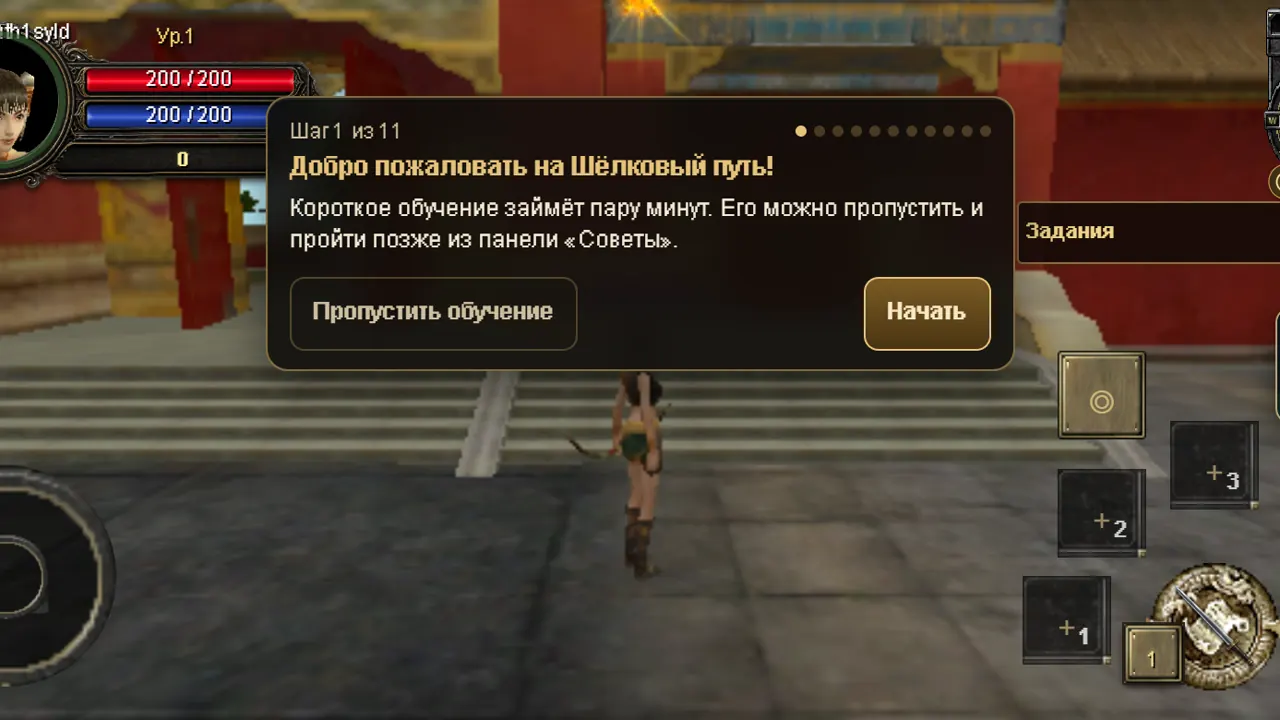
- Follow the tutorial. Your journey starts in Jangan (Chang'an). A short tutorial and a goal marker guide you through the first quest. You can skip it and go through it later.
- Take quests from townsfolk. The quest log opens with J. Experience is ×5, so the first levels go quickly.
- Fight outside the gates. Pick up loot with G and sell what you don't need to the merchants in town.
- Look around. The in-game guide is on the H key, the world map on M.
Desktop controls at a glance: WASD or the arrow keys to walk, a mouse click to walk to a spot, attack or talk to someone, Q and E to turn the camera, 1–0 for the skill and item bar, I for inventory, C for character, K for skills, U for community and guild, N to sit and rest, Enter for chat. Used to the original client? Turn off WASD movement in the control settings and the classic layout, with windows on S, A, Q and E, comes back.
On a phone, hold the screen in landscape and touch controls switch on: a joystick on the left, attack and skill buttons on the right. We cover phones in detail in Silkroad Online on mobile.
Common problems
- The game won't start or the world is black. Update your browser. WebGL 2 support is required; very old browsers and some locked-down office machines do not have it.
- The Telegram sign-in failed. The game falls back to the normal login form and shows the reason on screen. If the Mini App has been open for more than an hour, close it and open it again from the chat.
- “Account already in game.” The same account is open somewhere else. The server closes the old session; give it a few seconds and sign in again.
- SmartScreen blocks the launcher. That is expected until the launcher is signed: “More info” → “Run anyway”.
- Will my progress be kept? The server is in open testing. We take care of characters, but major updates may bring resets, and we will announce them in advance on the site and in Telegram.
If something else goes wrong, message us in @SilkRoadOnlineGame. Server maintenance notices are posted there as well.
Get started
Press the play button below, or press “Start” in Telegram. If you want a plan for the first evening, the beginner's guide covers sign-up, the first quests, jobs and guilds, and the unique monster guide tells you which bosses to hunt once you have a few levels behind you.