Blog · Platforms
Silkroad Online on Mobile: Android, iPhone, Telegram
Play Silkroad on your phone without an app store: browser or Telegram, touch controls with joystick and skill buttons, WebGL 2 requirements.
This post is also available in: Русский
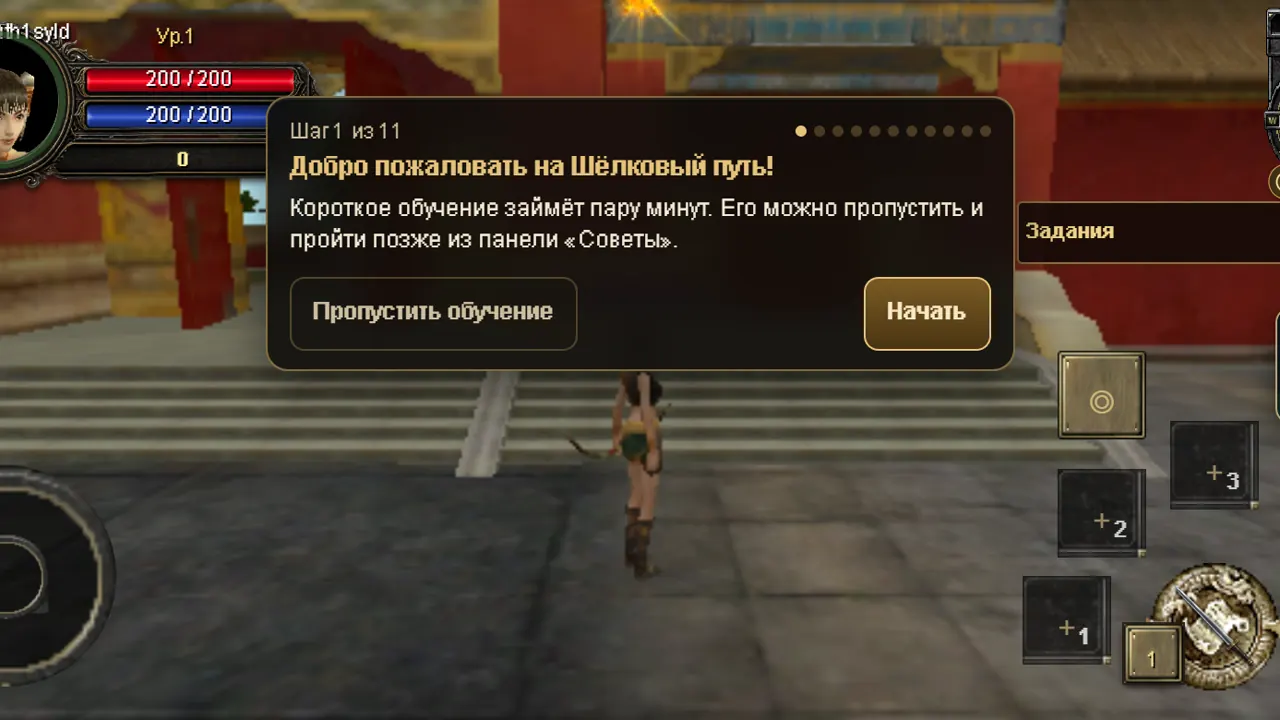
You can play SroAsia on a phone without visiting an app store. The game runs in your phone's browser and inside Telegram, with its own touch controls: a joystick, skill buttons and windows resized for a small screen. It is the same server and the same world as on a desktop, so you can start a hunt on your PC and finish it on the bus.
This guide covers what your phone needs, the two ways to open the game, how the touch controls work, and how to keep mobile data in check.
What your phone needs
The one real requirement is WebGL 2, the browser technology the game uses to draw the world. Recent versions of these all support it:
- Android: Chrome or Yandex Browser.
- iPhone: Safari.
- Either: the Telegram app.
If your browser is up to date, you are almost certainly fine. If the game opens to a black screen instead of the world, update the browser first; that fixes most cases. We don't publish a list of supported phone models, because the browser version matters far more than the model.
The game is designed for landscape. Hold the phone sideways and touch controls switch on automatically. If you open the game in portrait, it asks you to rotate the device; you can also choose “Continue in portrait”, which gives you a simplified interface. If the screen refuses to turn, the rotation lock is on. On Android, switch it off in the quick settings panel; on iPhone, turn off Portrait Orientation Lock in Control Center.
Two ways to open the game
In the browser
Open the website and press “Play in browser”. You can sign up on the game's login screen or, if you prefer, go through Telegram instead (below). Usernames use Latin letters, digits and symbols without spaces, up to 25 characters; passwords need at least 8.
In Telegram
Press “Start” in @SilkRoadOnlineGame. Telegram signs you in, an account is created for you, and you land at character selection without typing a username or password. On a phone, the Mini App behaves like a native game:
- it goes full screen and locks to landscape once you are in the world;
- swiping down does not close it by accident;
- Telegram's Back button works like Esc in the game, closing the top window or menu;
- if you try to close it while you are in the world, Telegram asks you to confirm;
- the phone vibrates on hits, level-ups and death (switch it off in the “⋯” menu);
- when you minimise the Mini App, the game stops drawing frames until you come back, which saves battery.
The same chat can remind you about events: the /remind command sends a message 10 minutes before the event you picked.
Touch controls
Here is what you get once you are in the world. The “Controls” section of the guide has the short version; this is the long one.
Moving and the camera
- Joystick on the left moves your hero. It can be fixed in one place or appear under your finger wherever you touch the left side of the screen.
- Drag across the world to turn the camera.
- Spread two fingers to zoom in.
Targeting and attacking
- Tap a monster or a townsperson to select it.
- Hold your finger on a monster to attack it straight away.
- A dedicated button attacks the nearest target, and another one selects the next target without attacking, which is handy when you want to pick your fight first.
- Context buttons appear when you need them: Pick up for loot on the ground, Talk next to an NPC, Lower to get off a mount.
- Some skills need a spot on the ground. When you use one, the game asks you to tap a point; you can also cancel the aim.
The skill bar
The buttons on the right are your quick slots. Tap an empty slot to assign a skill or an item, and hold an occupied one to change it. There is more than one page of quick actions; a button switches between them, so you can keep attacks on one page and buffs or potions on another.
The menu
The menu button opens everything the keyboard does on a desktop, grouped into sections:
- Character: inventory, character, skills, actions, quests, alchemy, auto potion, sit.
- Social & world: party, party matching, community and guild, Free PvP, map, help, Item Mall, auction, groups.
- System: game settings, touch controls, and “Stuck?”, which offers to send you back to town (after you confirm) if your hero gets wedged somewhere.
Chat has its own button, so you can open it, reply and close it without leaving the fight.
Tune the controls to your hands
Open Controls in the system section of the menu. There you can set:
| Setting | Options |
|---|---|
| Joystick | Fixed or under your finger |
| Camera sensitivity | Smooth, normal or fast |
| Horizontal rotation | Normal or inverted |
| Joystick size | Normal, large or very large |
| Action button size | Normal, large or very large |
| Side margin | Normal, medium or wide |
If you play with a phone case or a thumb sits awkwardly near the edge, try the medium or wide side margin first. Larger action buttons help on small screens. If you get lost in the settings, “Reset controls” puts everything back.
Let the potions drink themselves
Tapping a potion in the middle of a fight is the hardest thing to do on a touch screen. Auto Potion in the character section of the menu does it for you: set an HP and an MP threshold, and the game uses a potion when you drop below it. Your starter kit already has 100 HP and 100 MP potions, plus more at every ten levels from level 10, so set this up before you leave Jangan.
Add a shortcut to the home screen
The “Install” button on our home page puts a game icon on your home screen. It does not install anything from a store; it is a shortcut that opens the game in its own window, without the address bar.
- Android (Chrome): use the “Install app” button on the site, or the browser's own install option.
- iPhone: open the game in Safari and tap Share → Add to Home Screen. This is also the way to get the full screen on iPhone.
Saving mobile data
The game is careful with your data plan:
- No heavy title screen. On phones, in Telegram, on a mobile connection or with Data Saver on, the start screen shows a still image instead of a live 3D scene, so you get to character selection faster and download less.
- Assets stream as you play. The game downloads models and textures for the area you are in, not the whole world at once.
- The full game download waits for Wi-Fi. After you enter the world on a phone (or from the home screen icon), the game offers once to save the whole client on your device. You can pick “Download (Wi-Fi only)”, “Not now” or “Do not ask again”. With Wi-Fi only, the download pauses on mobile data instead of eating your plan. If your phone lacks the space, the game tells you how much is needed and how much is free. Changed your mind later? It's in Options → Video → Graphic 2.
The download is not offered inside Telegram, whose built-in browser does not guarantee enough permanent storage.
This is not Silkroad Origin Mobile
There is an official mobile Silkroad game, Silkroad Origin Mobile, with its own apps in the stores. SroAsia is not that game and is not connected to it. We are an independent server of classic Silkroad Online that runs in a browser and in Telegram. Silkroad Online and its trademarks belong to Joymax; you'll find that notice at the bottom of every page of our site.
That also means there is nothing to look for in the App Store or Google Play under our name. The links on this site and @SilkRoadOnlineGame in Telegram are the way in.
Start on your phone
Open the game with the button below, or press “Start” in Telegram. Once you're in, the beginner's guide explains the first quests, and our guide to Chinese builds helps you pick a weapon that suits touch controls: a bow keeps you out of reach, a blade and shield forgives late reactions. If you also play on a computer, Play Silkroad Online in your browser or Telegram covers the desktop side and the Windows launcher.


